Integrated Services
EyeRouteTM Ophthalmic Image Management System
EyeRouteTM is a Web-based image management solution for storing and routing images that integrates with MaximEyes® SQL. The software is fully HIPAA-compliant and meets the highest network security requirements with high-end firewall protection.
Use this tab to specify the Practice and EyeRoute computer host names. For more information on associating EyeRoute images to a MaximEyes SQL Encounter record, contact First Insight at 800.920.1940 or download the latest MaximEyes SQL diagnostic equipment integrations list.
Step-by-step
- Select Office Admin menu
 Integrated Services Eye Route. The Eye Route tab displays. If this is the initial set-up for EyeRoute:
- The Add Hostname button is active.
- The Edit and Clear buttons are inactive.
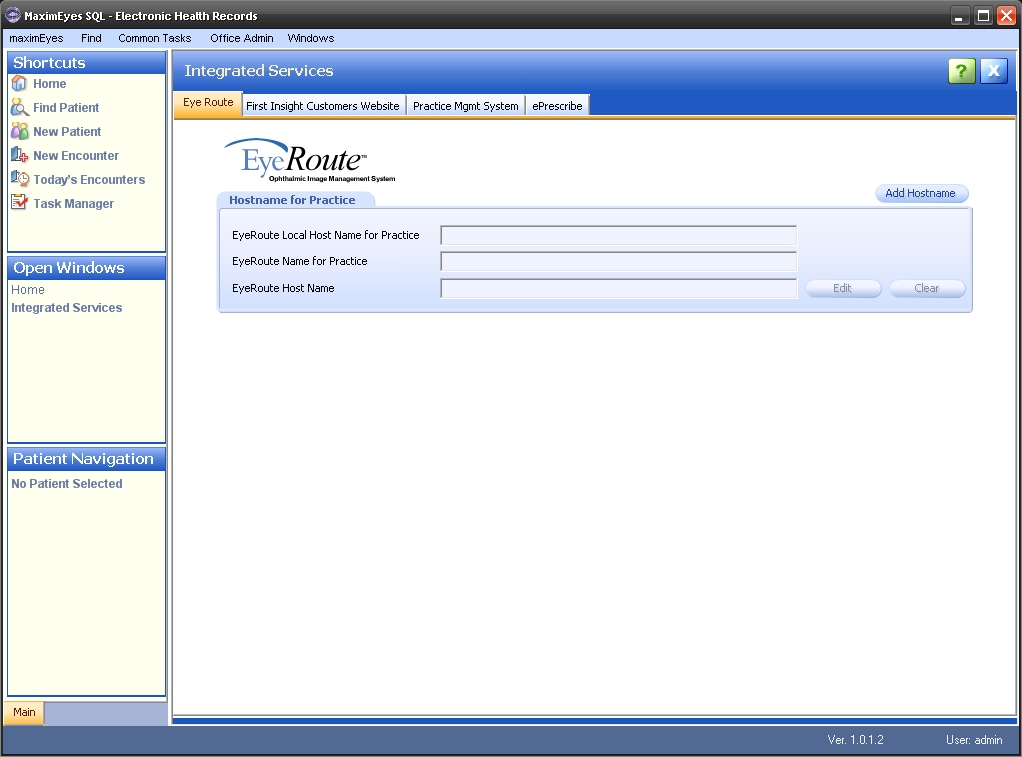
- Complete the EyeRoute Hostname for Practice tab. For help, click here.
First Insight Customers Website
Use this tab to set up login information for Admin Users by Business and General Users by Location.
- Select Office Admin menu Integrated Services First Insight Customers Website. The First Insight Customers Website tab displays.
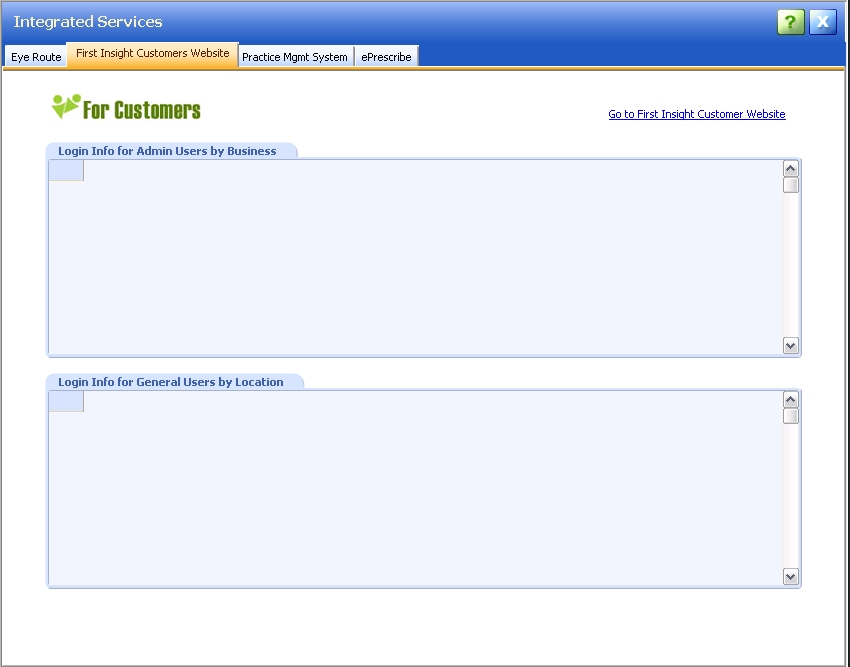
- Click the Go to First Insight Customers Website link in the upper-right corner to access the First Insight Customer Website.
- The For Customers website displays in an Internet browser window on top of the MaximEyes SQL application.
- To access the site, enter your User Name, case-sensitive Password and Telephone and click the Go button.
- First-time MaximEyes clients must contact First Insight to receive a User Name and default Password (one User Name and Password per practice).
Call First Insight at 800.920.1940, option 0, or email customer support (click here for details).
For Customers Web site links
A variety of support options and information are available from the For Customers Web site, including:
- Secure online, pre-business hours and email Customer Support
- First Insight Corporation main Web site
- MaximEyes SQL product information
- paradEyes.com Web site
- Optometry.net Web site
- Customer events
- First Insight news
- FAQs
- Training Resources
- Downloads
- Forms
Practice Management System
Use this tab to specify data transfer settings between MaximEyes SQL and MaximEyes Practice Management System software.
- Select Office Admin menu Integrated Services Practice Mgmt System. The Practice Management System tab displays.
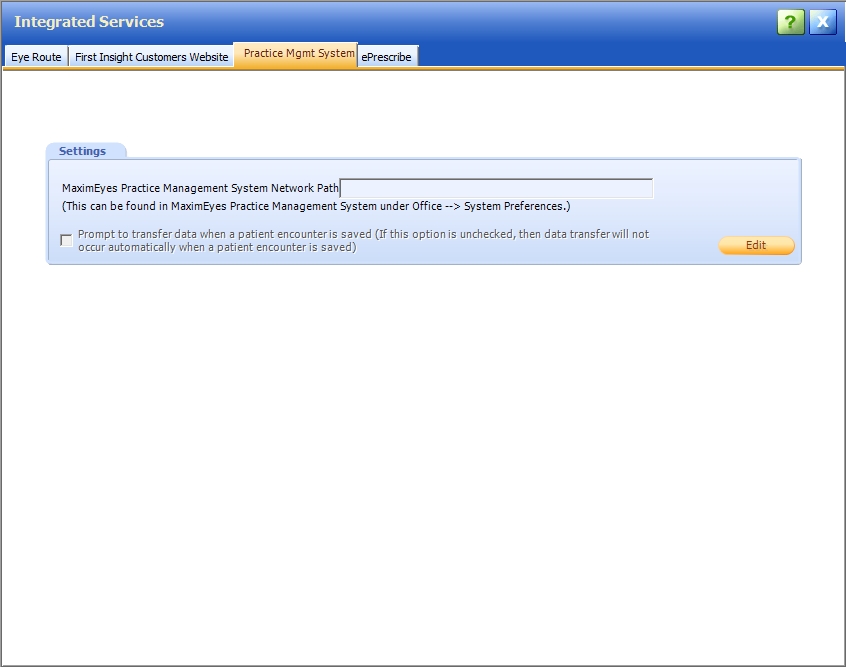
- To change the Settings, click the Edit button. The Practice Mgmt System popup displays.

- Make changes as appropriate to the following options:
Option Description MaximEyes Practice Management System
Network PathThe network path of the MaximEyes directory present on the MaximEyes Practice Management System server.
This path is required for transferring data from MaximEyes SQL Electronic Health Records to MaximEyes Practice Management System.
Prompt to transfer data when patient encounter is saved If this is selected (checked), the Patient Encounter data transfers automatically to the MaximEyes Practice Management System when the Patient Encounter is saved.
If this option is not selected (unchecked), then the data transfer does not occur automatically when a Patient Encounter is saved.
Note: If this option is not selected, the user must click the Transfer data to practice management system button, located on the Secondary toolbar of the Patient Encounter window, to transfer the data.
When this option is not selected, the user customarily clicks the Transfer data to practice management system button when the prescription portion of the Encounter is complete, and then clicks it again after the billing portion of the Encounter is complete.
If the prescription data has changed when the button is clicked subsequent to the first time, a warning message displays, giving the user an opportunity to send new data or keep the original data.
- Click the Cancel button to close the Practice Mgmt System popup without saving changes.
- Click the Save & Close button to close the Practice Mgmt System popup and save changes. The updated Practice Mgmt System popup displays.
E-Prescribe
To use E-Prescribe, a user must be registered on the Rcopia Website. Contact First Insight Corporation for help in registering.
After registration is complete, Rcopia user information must be entered in the Integrated Services module of MaximEyes SQL.
- Select Office Admin menu Integrated Services ePrescribe. The ePrescribe tab displays.
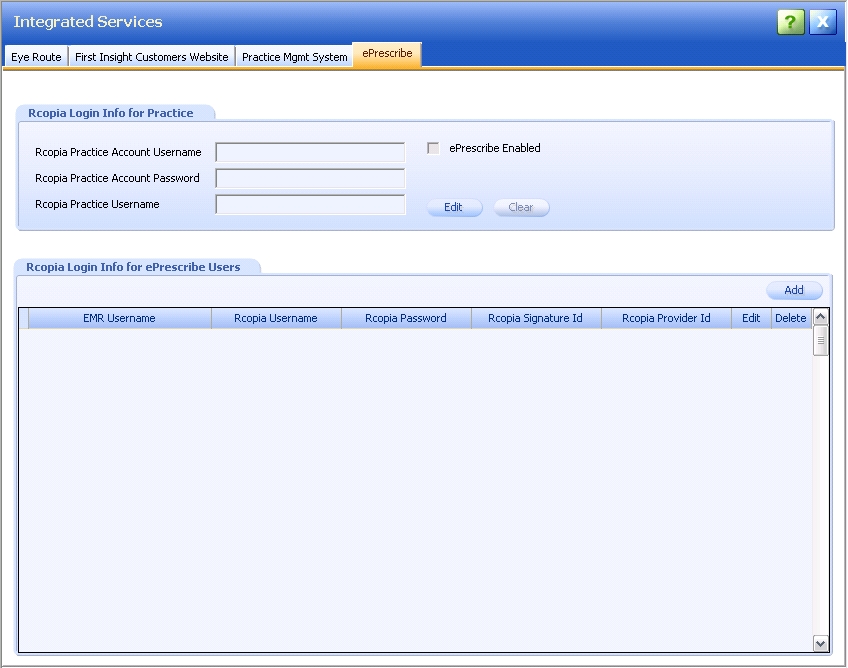
- Complete the Rcopia Login Info for Practice tab. For help, click here.
- Complete the Rcopia Login Info for ePrescribe Users tab. For help, click here.
 Top of Page