Rcopia Login Info For Practice
To use E-Prescribe, a user must be registered on the Rcopia Website. Contact First Insight Corporation for help in registering.
After registration is complete, Rcopia user information must be entered in the Integrated Services module of MaximEyes SQL.
- Step-by-step
- Add Practice Account Info
- Edit Practice Account Info
- Delete Practice Account Info
- Related topics
Step-by-step
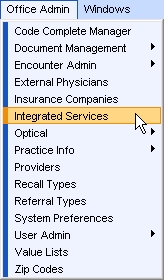
- Select Office Admin menu
 Integrated Services.
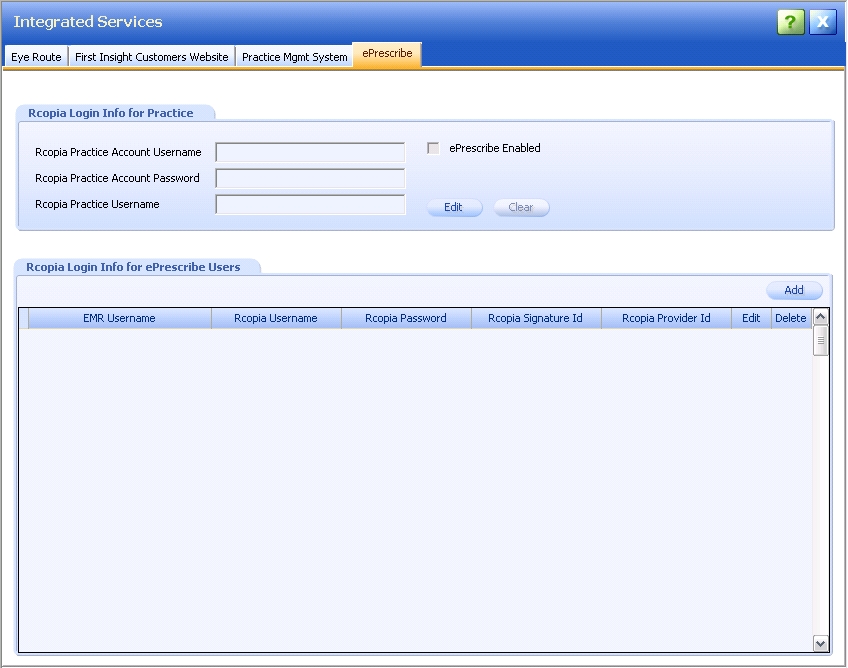
- Click the E-Prescribe tab. The E-Prescribe window displays.
Add Practice Account Info
- Click the Edit button on the Rcopia Login Info for Practice tab.
- The Edit Practice Account Info popup displays.
- The cursor is in the Rcopia Practice Account Username field.
- Required fields are marked with a red asterisk. *
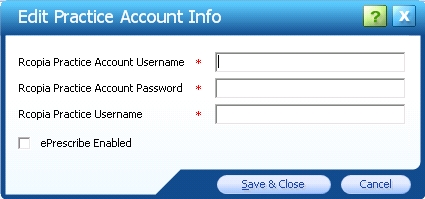
- Complete all fields.
- Select E-Prescribe Enabled if the practice is using E-Prescribe.
- To close the Edit Practice Account Info popup without saving changes, click the Cancel button.
- To close the popup and save changes, click the Save & Close button.
- The updated Rcopia Login Info For Practice tab displays.
- The Rcopia Practice Account Password is hidden.

Edit Practice Account Info
- Click the Edit button. The Edit Practice Account Info popup displays.
- The cursor is in the Rcopia Practice Account Username field.
- The Rcopia Practice Account Password displays as plain text.
- All fields can be changed.
- Required fields are marked with a red asterisk. *
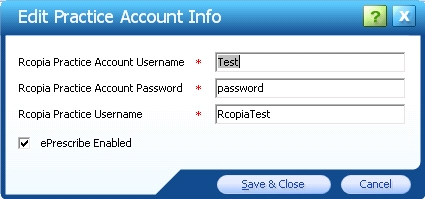
- Make changes as desired.
- To close the Edit Practice Account Info popup without saving changes, click the Cancel button.
- To close the popup and save changes, click the Save & Close button.
- The updated Rcopia Login Info For Practice tab displays.
- The Rcopia Practice Account Password is hidden.

Delete Practice Account Info
- Click the Clear button. A warning displays.
- Click the Yes button to confirm the deletion. Click No to cancel the deletion.
- The Rcopia Login Info for Practice tab updates to display accordingly.
 Top of Page