EyeRouteTM Hostname For Practice
EyeRouteTM is a Web-based image management solution for storing and routing images that integrates with MaximEyes® SQL. The software is fully HIPAA-compliant and meets the highest network security requirements with high-end firewall protection.
Use this tab to specify the Practice and EyeRoute computer host names. For more information on associating EyeRoute images to a MaximEyes SQL Encounter record, contact First Insight at 800.920.1940 or download the latest MaximEyes SQL diagnostic equipment integrations list.
- Step-by-step
- Add Hostname For Practice
- Edit Hostname For Practice
- Delete Hostname For Practice
- Related topics
Step-by-step
- Select Office Admin menu
 Integrated Services.
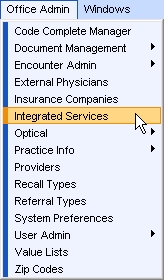
- Click the EyeRoute tab. The EyeRoute window displays. If this is the initial set-up for EyeRoute:
- The Add Hostname button is active.
- The Edit and Clear buttons are inactive.
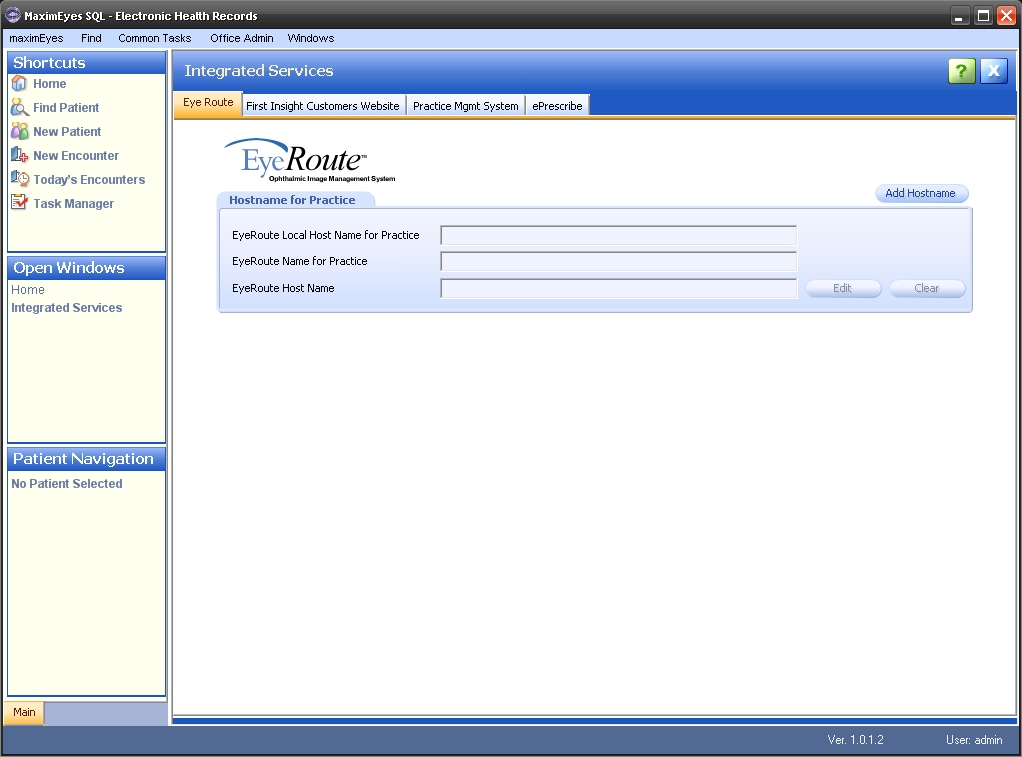
Add Hostname for Practice
- Click the Add Hostname button.
- The Edit EyeRoute Hostname Info popup displays.
- The cursor is in the EyeRoute Local Hostname for Practice field.
- Required fields are marked with a red asterisk. *
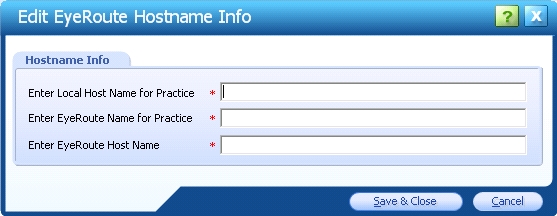
- Complete all fields.
- To close the Edit EyeRoute Hostname Info popup without saving changes, click the Cancel button.
- To close the popup and save changes, click the Save & Close button.
- The updated Hostname for Practice tab displays.
- The Add Hostname button is inactive.

Note: A Practice can only have one Hostname. When the Clear button is clicked and the Hostname information is deleted, the Add Hostname button is once again active.
Edit Hostname for Practice
- Click the Edit button. The Edit EyeRoute Hostname Info popup displays.
- The cursor is in the Edit Local Hostname for Practice field.
- All fields can be changed.
- Required fields are marked with a red asterisk. *
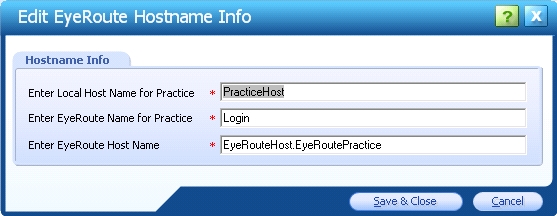
- Make changes as desired.
- To close the Edit EyeRoute Hostname Info popup without saving changes, click the Cancel button.
- To close the popup and save changes, click the Save & Close button.
- The updated Hostname for Practice tab displays.
- The Add Hostname button is inactive.

Delete Hostname for Practice
- Click the Clear button. A warning displays.
- Click the Yes button to confirm the deletion. Click No to cancel the deletion.
- The Hostname for Practice tab updates to display accordingly.
 Top of Page